I am trying to use the Alert component in React Native to create a consistent experience between Android and iOS. I am trying to run the example alert. I import the Alert component (omitted other imports for brevity):
import { Alert, } from 'react-native'; I then create the alert provided in the example:
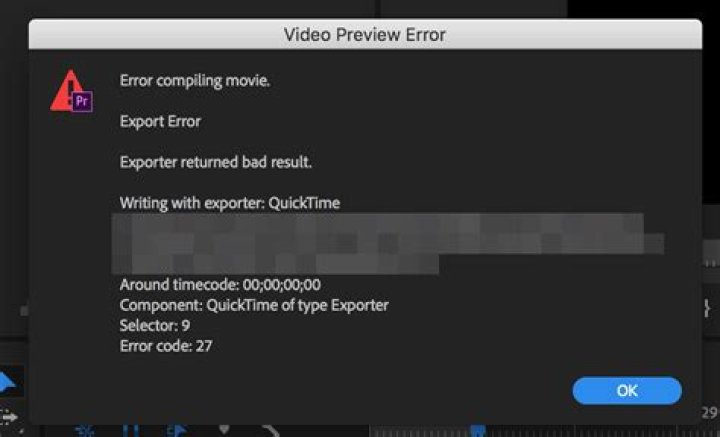
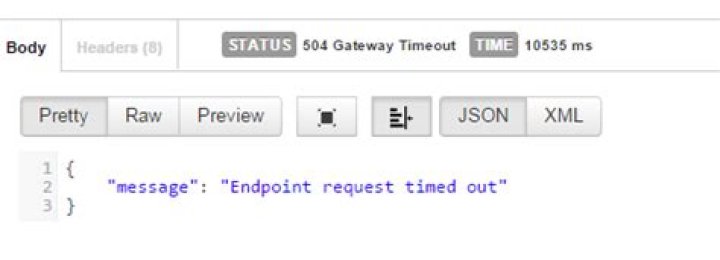
Alert.alert( 'Alert Title', 'My Alert Msg', [ {text: 'Ask me later', onPress: () => console.log('Ask me later pressed')}, {text: 'Cancel', onPress: () => console.log('Cancel Pressed'), style: 'cancel'}, {text: 'OK', onPress: () => console.log('OK Pressed')}, ] ) However, I get the following error:

I have found this post with a similar issue, however, I believe my problem is different because:
- I am running React Native version 0.36.1
- I am seeing this error for Android and iOS
I am stumped as to how to fix this. Has anyone else had any luck getting this to work on version 0.36?
Update
As requested, here is an example of where I am trying to use the alert:
<TouchableHighlight style={styles.button} underlayColor='transparent' onPress={() => Alert.alert( 'Alert Title', 'Alert Message' )}> This is just one instance where the code fails. I have tried multiple alerts across several components and methods and none of them are working.
Update 2
It is worth noting that the standard alert() function works without crashing. However, I am not able to specify the title of the alert. For instance the code below would return an alert with a title "Alert" and the message as "Please enter a 4 digit code".
alert("Invalid Code", "Please enter a 4 digit code.") My desired output would be to have the title = "Invalid Code" and the message = "Please enter a 4 digit code."
31 Answer
I would try creating a separate function that calls for the Alert.alert('foo'). Then in your TouchableHighlight, use onPress={this.onYourFunctionName.bind(this)}