I have Xamarin Studio, and I need to specify the Android SDK Location. I have previously had Xamarin Studio working on my pc, and for some reason, I need to enter this again.
I have entered the following location:
C:\Users\**username**\AppData\Local\Android\android-sdk
Xamarin Studio does not accept this location and displays the following message:
No SDK found at the specified location This location has platform-tools and other SDK folders.
Why is this not working, and what should I do?
416 Answers
Update v3.3

Update:
Android Studio 3.1 update, some of the icon images have changed. Click this icon in Android Studio.
Original:
Click this icon in Android Studio for the Android SDK manager
And your Android SDK Location will be here
Do you have a screen of the content of your folder? This is my setup:


I hope these screenshots can help you out.
3The Android SDK path is usually C:\Users\<username>\AppData\Local\Android\sdk.
Try to open the Android Sdk manager and the path would be displayed on the status bar.
The default location for Android sdk(s) on a Mac is:
/Users/*username*/Library/Android/sdk
If you only installed Xamarin with Visual Studio setup, the android SDK location is :
C:\Program Files (x86)\Android\android-sdk You can find it in Android SDK Manager as said Raj Asapu
In visual Studio : 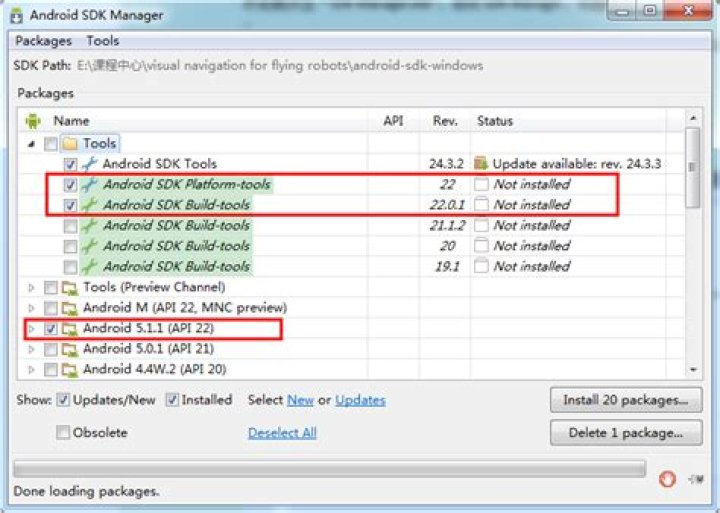
Note : you should not use Program Files path to install Android Studio due to the space in path ! 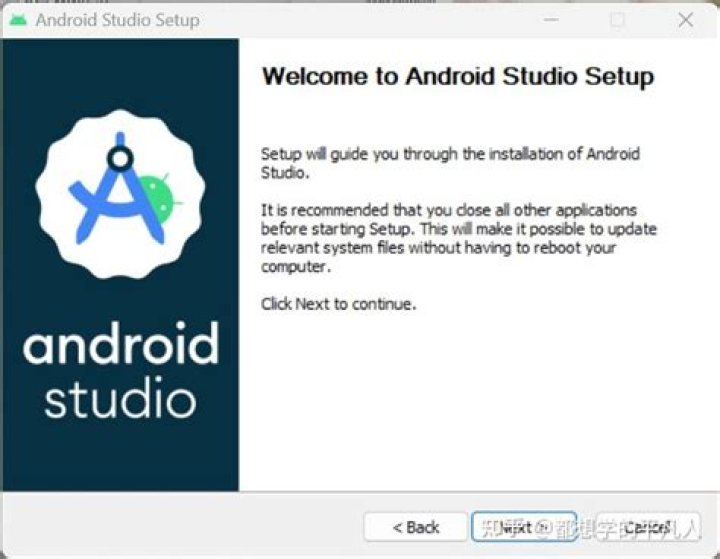
On 28 April 2019 official procedure is the following:
- Download and install Android Studio from - link
- Start Android Studio. On first launch, the Android Studio will download latest Android SDK into officially accepted folder
- When Android studio finish downloading components you can copy/paste path from the "Downloading Components" view logs so you don't need to type your [Username]. For Windows: "C:\Users\ [Username] \AppData\Local\Android\Sdk"
When you first time install Android Studio Setup, you can also see the SDK folder. For me it is:
C:\Users\{USERNAME}\AppData\Local\Android\sdk
Have you tried to find this folder via the Windows explorer? Can it been seen? Maybe the folder is hidden (by default install - it is hidden by the Windows operating system in the users folder). Just check that you can view hidden folders in Windows explorer (by the settings in the windows control panel > appearance and personalization > folder options > show hidden files and folders.
This happened to me as the Windows OS could not find the SDK folder which was required for the Android Studio SDK path, and was resolved by showing hidden files and folders, which enabled me to complete the default SDK install path location.
The question doesn't seem to require a programmatic solution, but my Google search brought me here anyway. Here's my C# attempt at detecting where the SDK is installed, based on the most common installation paths.
static string FindAndroidSDKPath() { string uniqueFile = Path.Combine("platform-tools", "adb.exe"); // look for adb in Android folders string[] searchDirs = { // User/AppData/Local Environment.GetFolderPath(Environment.SpecialFolder.LocalApplicationData), // Program Files Environment.GetFolderPath(Environment.SpecialFolder.ProgramFiles), // Program Files (x86) (it's okay if we're on 32-bit, we check if this folder exists first) Environment.GetFolderPath(Environment.SpecialFolder.ProgramFiles) + " (x86)", // User/AppData/Roaming Environment.GetFolderPath(Environment.SpecialFolder.ApplicationData) }; foreach (string searchDir in searchDirs) { string androidDir = Path.Combine(searchDir, "Android"); if (Directory.Exists(androidDir)) { string[] subDirs = Directory.GetDirectories(androidDir, "*sdk*", SearchOption.TopDirectoryOnly); foreach (string subDir in subDirs) { string path = Path.Combine(subDir, uniqueFile); if (File.Exists(path)) { // found unique file at DIR/Android return subDir; } } } } // no luck finding SDK! :( return null; } I need this because I'm writing an extension to a C# program to work with Android Studio/Gradle. Hopefully someone else will find this approach useful.
1press WIN+R and from the run dialog run dialog Execute the following: **%appdata%..\Local\Android**
You should now be presented with Folder Explorer displaying the parent directory of the SDK.
1If you have downloaded sdk manager zip (from ), then you have Android SDK Location as root of the extracted folder.
So silly, But it took time for me as a beginner.
If you can run the "sdkmanager" from the command line, then running sdkmanager --verbose --list will reveal the paths it checks.
For example, I have installed the SDK in c:\spool\Android and for me running the sdkmanager --verbose --list looks like:
>sdkmanager --list --verbose Info: Parsing c:\spool\Android\build-tools\27.0.3\package.xml Info: Parsing c:\spool\Android\emulator\package.xml Info: Parsing c:\spool\Android\extras\android\m2repository\package.xml Info: Parsing c:\spool\Android\extras\intel\Hardware_Accelerated_Execution_Manager\package.xml Info: Parsing c:\spool\Android\patcher\v4\package.xml Info: Parsing c:\spool\Android\platform-tools\package.xml Info: Parsing c:\spool\Android\platforms\android-27\package.xml Info: Parsing c:\spool\Android\tools\package.xml Installed packages:=====================] 100% Computing updates... -------------------------------------- build-tools;27.0.3 Description: Android SDK Build-Tools 27.0.3 Version: 27.0.3 Installed Location: c:\spool\Android\build-tools\27.0.3 P.S. On another PC I let the Android Studio install the Android SDK for me, and the SDK ended up in C:\Users\MyUsername\AppData\Local\Android\Sdk.
I found it here C:\Users\username\AppData\Local\Android\sdk .
2Just add a new empty directory that path is “/Users/username/Library/Android/sdk”. Then reopen it.
1For Mac OS Catalina with zsh:
echo '\nexport PATH="$PATH":"$HOME/Library/Android/sdk"' >> $HOME/.zshrc
restart the terminal and voila :)