I'm getting started working with Docker. I'm using the WordPress base image and docker-compose.
I'm trying to ssh into one of the containers to inspect the files/directories that were created during the initial build. I tried to run docker-compose run containername ls -la, but that didn't do anything. Even if it did, I'd rather have a console where I can traverse the directory structure, rather than run a single command. What is the right way to do this with Docker?
29 Answers
docker attach will let you connect to your Docker container, but this isn't really the same thing as ssh. If your container is running a webserver, for example, docker attach will probably connect you to the stdout of the web server process. It won't necessarily give you a shell.
The docker exec command is probably what you are looking for; this will let you run arbitrary commands inside an existing container. For example:
docker exec -it <mycontainer> bash Of course, whatever command you are running must exist in the container filesystem.
In the above command <mycontainer> is the name or ID of the target container. It doesn't matter whether or not you're using docker compose; just run docker ps and use either the ID (a hexadecimal string displayed in the first column) or the name (displayed in the final column). E.g., given:
$ docker ps d2d4a89aaee9 larsks/mini-httpd "mini_httpd -d /cont 7 days ago Up 7 days web I can run:
$ docker exec -it web ip addr 1: lo: <LOOPBACK,UP,LOWER_UP> mtu 65536 qdisc noqueue state UNKNOWN link/loopback 00:00:00:00:00:00 brd 00:00:00:00:00:00 inet 127.0.0.1/8 scope host lo valid_lft forever preferred_lft forever inet6 ::1/128 scope host valid_lft forever preferred_lft forever 18: eth0: <BROADCAST,UP,LOWER_UP> mtu 1500 qdisc noqueue state UP link/ether 02:42:ac:11:00:03 brd ff:ff:ff:ff:ff:ff inet 172.17.0.3/16 scope global eth0 valid_lft forever preferred_lft forever inet6 fe80::42:acff:fe11:3/64 scope link valid_lft forever preferred_lft forever I could accomplish the same thing by running:
$ docker exec -it d2d4a89aaee9 ip addr Similarly, I could start a shell in the container;
$ docker exec -it web sh / # echo This is inside the container. This is inside the container. / # exit $ To bash into a running container, type this:
docker exec -t -i container_name /bin/bash or
docker exec -ti container_name /bin/bash or
docker exec -ti container_name sh Historical note: At the time I wrote this answer, the title of the question was: "How to ssh into a docker container?"
As other answers have demonstrated, it is common to execute and interact with preinstalled commands (including shells) in a locally-accessible running container using docker exec, rather than SSH:
docker exec -it (container) (command) Note: The below answer is based on Ubuntu (of 2016). Some translation of the installation process will be required for non-Debian containers.
Let's say, for reasons that are your own, you really do want to use SSH. It takes a few steps, but it can be done. Here are the commands that you would run inside the container to set it up...
apt-get update apt-get install openssh-server mkdir /var/run/sshd chmod 0755 /var/run/sshd /usr/sbin/sshd useradd --create-home --shell /bin/bash --groups sudo username ## includes 'sudo' passwd username ## Enter a password apt-get install x11-apps ## X11 demo applications (optional) ifconfig | awk '/inet addr/{print substr($2,6)}' ## Display IP address (optional) Now you can even run graphical applications (if they are installed in the container) using X11 forwarding to the SSH client:
ssh -X username@IPADDRESS xeyes ## run an X11 demo app in the client Here are some related resources:
- openssh-server doesn't start in Docker container
- How to get bash or ssh into a running container in background mode?
- Can you run GUI applications in a Linux Docker container?
- Other useful approaches for graphical access found with search: Docker X11
- If you run SSHD in your Docker containers, you're doing it wrong!
If you're here looking for a Docker Compose-specific answer like I was, it provides an easy way in without having to look up the generated container ID.
docker-compose exec takes the name of the service as per your docker-compose.yml file.
So to get a Bash shell for your 'web' service, you can do:
$ docker-compose exec web bash If the container has already exited (maybe due to some error), you can do
$ docker run --rm -it --entrypoint /bin/ash image_name or
$ docker run --rm -it --entrypoint /bin/sh image_name or
$ docker run --rm -it --entrypoint /bin/bash image_name to create a new container and get a shell into it. Since you specified --rm, the container would be deleted when you exit the shell.
Notice: this answer promotes a tool I've written.
I've created a containerized SSH server that you can 'stick' to any running container. This way you can create compositions with every container. The only requirement is that the container has Bash.
The following example would start an SSH server attached to a container with name 'my-container'.
docker run -d -p 2222:22 \ -v /var/run/docker.sock:/var/run/docker.sock \ -e CONTAINER=my-container -e AUTH_MECHANISM=noAuth \ jeroenpeeters/docker-ssh ssh localhost -p 2222 When you connect to this SSH service (with your SSH client of choice) a Bash session will be started in the container with name 'my-container'.
For more pointers and documentation see:
3Start a session into a Docker container using this command:
sudo docker exec -i -t (container ID) bash If you're using Docker on Windows and want to get shell access to a container, use this:
winpty docker exec -it <container_id> sh Most likely, you already have Git Bash installed. If you don't, make sure to install it.
1In some cases your image can be Alpine-based. In this case it will throw:
OCI runtime exec failed: exec failed: container_linux.go:348: starting container process caused "exec: \"bash\": executable file not found in $PATH": unknown
Because /bin/bash doesn't exist. Instead of this you should use:
docker exec -it 9f7d99aa6625 ash or
docker exec -it 9f7d99aa6625 sh To connect to cmd in a Windows container, use
docker exec -it d8c25fde2769 cmd Where d8c25fde2769 is the container id.
To inspect files, run docker run -it <image> /bin/sh to get an interactive terminal. The list of images can be obtained by docker images. In contrary to docker exec this solution works also in case when an image doesn't start (or quits immediately after running).
GOINSIDE SOLUTION
install goinside command line tool with:
sudo npm install -g goinside and go inside a docker container with a proper terminal size with:
goinside docker_container_name old answer
We've put this snippet in ~/.profile:
goinside(){ docker exec -it $1 bash -c "stty cols $COLUMNS rows $LINES && bash"; } export -f goinside Not only does this make everyone able to get inside a running container with:
goinside containername It also solves a long lived problem about fixed Docker container terminal sizes. Which is very annoying if you face it.
Also if you follow the link you'll have command completion for your docker container names too.
1It is simple!
List out all your Docker images:
sudo docker images On my system it showed the following output:
REPOSITORY TAG IMAGE ID CREATED VIRTUAL SIZE bash latest 922b9cc3ea5e 9 hours ago 14.03 MB ubuntu latest 7feff7652c69 5 weeks ago 81.15 MB I have two Docker images on my PC. Let's say I want to run the first one.
sudo docker run -i -t ubuntu:latest /bin/bash This will give you terminal control of the container. Now you can do all type of shell operations inside the container. Like doing ls will output all folders in the root of the file system.
bin boot dev etc home lib lib64 media mnt opt proc root run sbin srv sys tmp usr var I've created a terminal function for easier access to the container's terminal. Maybe it's useful to you guys as well:
So the result is, instead of typing:
docker exec -it [container_id] /bin/bash you'll write:
dbash [container_id] Put the following in your ~/.bash_profile (or whatever else that works for you), then open a new terminal window and enjoy the shortcut:
#usage: dbash [container_id] dbash() { docker exec -it "$1" /bin/bash } $ docker exec -it <Container-Id> /bin/bash Or depending on the shell, it can be
$ docker exec -it <Container-Id> /bin/sh You can get the container-Id via docker ps command
-i = interactive
-t = to allocate a psuedo-TTY
docker exec -it <container_id or name> bash
OR
docker exec -it <container_id or name> /bin/bash
you can interact with the terminal in docker container by passing the option -ti
docker run --rm -ti <image-name> eg: docker run --rm -ti ubuntu -t stands for terminal -i stands for interactive
There are at least 2 options depending on the target.
Option 1: Create a new bash process and join into it (easier)
- Sample start:
docker exec -it <containername> /bin/bash - Quit: type
exit - Pro: Does work on all containers (not depending on CMD/Entrypoint)
- Contra: Creates a new process with own session and own environment-vars
Option 2: Attach to the already running bash (better)
- Sample start:
docker attach --detach-keys ctrl-d <containername> - Quit: use keys
ctrlandd - Pro: Joins the exact same running bash which is in the container. You have same the session and same environment-vars.
- Contra: Only works if CMD/Entrypoint is an interactive bash like
CMD ["/bin/bash"]orCMD ["/bin/bash", "--init-file", "myfile.sh"]AND if container has been started with interactive options likedocker run -itd <image>(-i=interactive, -t=tty and -d=deamon [opt])
We found option 2 more useful. For example we changed apache2-foreground to a normal background apache2 and started a bash after that.
docker exec will definitely be a solution. An easy way to work with the question you asked is by mounting the directory inside Docker to the local system's directory.
So that you can view the changes in local path instantly.
docker run -v /Users/<path>:/<container path> Use:
docker attach <container name/id here> The other way, albeit there is a danger to it, is to use attach, but if you Ctrl + C to exit the session, you will also stop the container. If you just want to see what is happening, use docker logs -f.
:~$ docker attach --help Usage: docker attach [OPTIONS] CONTAINER Attach to a running container Options: --detach-keys string Override the key sequence for detaching a container --help Print usage --no-stdin Do not attach STDIN --sig-proxy Proxy all received signals to the process (default true) Use this command:
docker exec -it containerid /bin/bash To exec into a running container named test, below is the following commands
If the container has bash shell
docker exec -it test /bin/bash If the container has bourne shell and most of the cases it's present
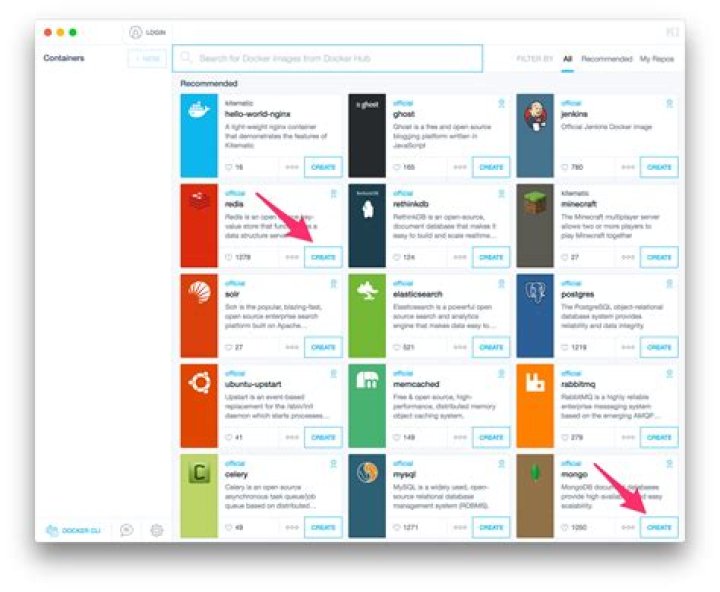
docker run -it test /bin/sh If you have Docker installed with Kitematic, you can use the GUI. Open Kitematic from the Docker icon and in the Kitematic window select your container, and then click on the exec icon.
You can see the container log and lots of container information (in settings tab) in this GUI too.

2022 Solution
Consider another option
Why do you need it?
There is a bunch of modern docker-images that are based on distroless base images (they don't have /bin/bash either /bin/sh) so it becomes impossible to docker exec -it {container-name} bash into them.
How to shell-in any container
Use opener:
- requires to add alias in your environment
opener wordpress - works anywhere
docker run --rm -it -v /var/run/docker.sock:/var/run/docker.sock artemkaxboy/opener wordpress
Instead of wordpress you can use name or id or image-name of any container you want to connect
How it works
Opener is a set of python scripts wrapped-up to a docker image. It finds target container by any unique attribute (name, id, port, image), tries to connect to target using bash. If bash is not found opener tries to connect using sh. Finally if sh is not found either opener installs busybox into target container and connects to the target using busybox shell, opener deletes busybox during disconnection.
In my case, for some reason(s) I need to check all the network involved information in each container. So the following commands must be valid in a container...
ip route netstat ps ... I checked through all these answers, none were helpful for me. I’ve searched information in other websites. I won’t add a super link here, since it’s not written in English. So I just put up this post with a summary solution for people who have the same requirements as me.
Say you have one running container named light-test. Follow the steps below.
docker inspect light-test -f {{.NetworkSettings.SandboxKey}}. This command will get reply like/var/run/docker/netns/xxxx.- Then
ln -s /var/run/docker/netns/xxxx /var/run/netns/xxxx. The directory may not exist, domkdir /var/run/netnsfirst. - Now you may execute
ip netns exec xxxx ip addr showto explore network world in container.
PS. xxxx is always the same value received from the first command. And of course, any other commands are valid, i.e. ip netns exec xxxx netstat -antp|grep 8080.
There are two options we can connect to the docker terminal directly with these method shell and bash but usually bash is not supported and defualt sh is supported terminal To sh into the running container, type this:
docker exec -it container_name/container_ID sh
To bash into a running container, type this:
docker exec -it container_name/container_ID bash
and you want to use only bash terminal than you can install the bash terminal in your Dockerfile like RUN apt install bash -y
Another option is to use nsenter.
PID=$(docker inspect --format {{.State.Pid}} <container_name_or_ID>) nsenter --target $PID --mount --uts --ipc --net --pid If you are using Docker Compose then this will take you inside a Docker container.
docker-compose run container_name /bin/bash Inside the container it will take you to WORKDIR defined in the Dockerfile. You can change your work directory by
WORKDIR directory_path # E.g /usr/src -> container's path For docker-compose up (Docker4Drupal)
docker-compose exec php bash I use Docker for Drupal on a Linux laptop. After running the container I use 'docker-compose exec php bash' to connect with the container so I can run drush commandos. It works fine for me.