How do I list the user-installed / envirorment package ONLY in npm?
When I do npm -g list it outputs every package and their dependencies, instead I'd like to see the packages installed in the current working project or envirorment.
17 Answers
npm list -g --depth=0 - npm: the Node package manager command line tool
- list -g: display a tree of every package found in the user’s folders (without the
-goption it only shows the current directory’s packages) - --depth 0 / --depth=0: avoid including every package’s dependencies in the tree view
You can get a list of all globally installed modules using:
ls `npm root -g` As of 13 December 2015
Whilst I found the accepted answer 100% correct, and useful, wished to expand upon it a little based on my own experiences, and hopefully for the benefit of others too. (Here I am using the terms package and module interchangeably)
In answer to the question, yes the accepted answer would be:
npm list -g --depth=0 You might wish to check for a particular module installed globally, on *nix systems / when grep available. This is particularly useful when checking what version of a module you are using (globally installed, just remove the -g flag if checking a local module):
npm list -g --depth=0 | grep <module_name> If you'd like to see all available (remote) versions for a particular module, then do:
npm view <module_name> versions Note, versions is plural. This will give you the full listing of versions to choose from.
For latest remote version:
npm view <module_name> version Note, version is singular.
To find out which packages need to be updated, you can use
npm outdated -g --depth=0 To update global packages, you can use
npm update -g <package> To update all global packages, you can use:
npm update -g (However, for npm versions less than 2.6.1, please also see this link as there is a special script that is recommended for globally updating all packages).
The above commands should work across NPM versions 1.3.x, 1.4.x, 2.x and 3.x
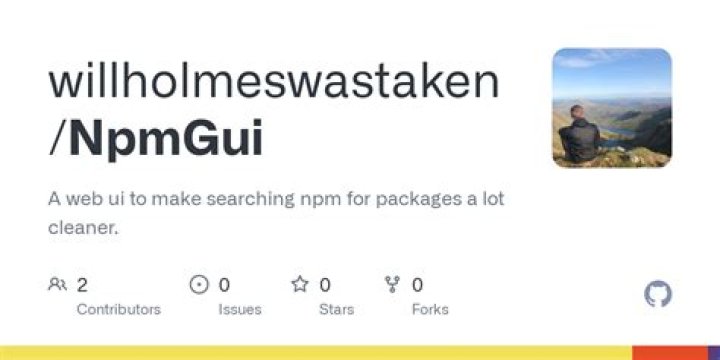
3List NPM packages with some friendly gui!
This is what I personally prefer and it may be for others too, it may also help during presentations or meetings.
With npm-gui you can list local and global packages with a better visualization.
You can find the package at
Run the following
//Once npm install -g npm-gui cd c:\your-prject-folder npm-gui localhost:9000 Then open your browser at http:\\localhost:9000
For project dependencies use:
npm list --depth=0 For global dependencies use:
npm list -g --depth=0 npm ls npm list is just an alias for npm ls
For the extended info use
npm la npm ll You can always set --depth=0 at the end to get the first level deep.
npm ls --depth=0 You can check development and production packages.
npm ls --only=dev npm ls --only=prod To show the info in json format
npm ls --json=true The default is false
npm ls --json=false You can insist on long format to show extended information.
npm ls --long=true You can show parseable output instead of tree view.
npm ls --parseable=true You can list packages in the global install prefix instead of in the current project.
npm ls --global=true npm ls -g // shorthand Full documentation you can find here.
Node has a concept of Local modules & Global modules
Local modules are located within current project directory.
Global Modules are generally located at user's home directory, though we can change the path where global modules resides.
- Lists local modules within current dir:
npm list - Lists global modules :
npm list --globalORnpm list --g// It will list all the top level modules with its dependencies - List only top level(Installed modules) global modules :
npm list -g --depth=0
One way might be to find the root directory of modules using:
npm root /Users/me/repos/my_project/node_modules And then list that directory...
ls /Users/me/repos/my_project/node_modules grunt grunt-contrib-jshint The user-installed packages in this case are grunt and grunt-contrib-jshint
6I use npm -g outdated --depth=0 to list outdated versions
in the global space.
To see list of all packages that are installed.
$ npm ls --parseable | awk '{gsub(/\/.*\//,"",$1); print}'| sort -u 1
You can try NPM Desktop manager 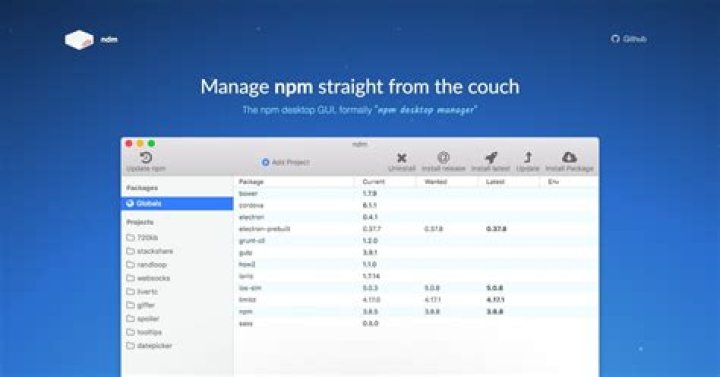
With just one click, you can install/uninstall packages in dev or global status.
Node_modules contains user-installed packages so change the directory to node_modules and list the items. Core Modules are defined in node's source in the lib/ folder.
Example:
example@example:~/:~/node_modules$ ls express maxmind-native node-whois socket.io ua-parser-js geoip mongoskin pdfkit tail zeromq maxmind nodemailer request ua-parser zmq As the end of 2021, there are few obvious way to do it, despite all the other answer are still working I think an update is needed besides a more defined and complete list of commands possible, and while am I at it, I added some other common commands for whom needs it (install, uninstall etc..)
# bare command npm list # ls is an alias of list npm ls # don't shows dependencies npm list --depth=0 # Global modules npm list -g --depth=0 # More info npm la npm ll # show particual env packages npm ls --only=dev npm ls --only=prod # parseable view (tree view) npm ls --parseable=true The Node.js Documentation is actually pretty well explained regarding the matter, this is a collective list of the main commands.
Before start NOTE:
All Commands will run the list of installed modules Locally. In order to run global level just add a -g flag at the end of the statement.
List installed dependency commands
See the version of all installed npm packages, including their dependencies.
❯ npm list >>> /Users/joe/dev/node/cowsay └─┬ cowsay@1.3.1 ├── get-stdin@5.0.1 ├─┬ optimist@0.6.1 │ ├── minimist@0.0.10 │ └── wordwrap@0.0.3 ├─┬ string-width@2.1.1 │ ├── is-fullwidth-code-point@2.0.0 │ └─┬ strip-ansi@4.0.0 │ └── ansi-regex@3.0.0 └── strip-eof@1.0.0Get only your top-level packages
npm list --depth=0Get the version of a specific package by specifying its name.
npm list <package-name>See what's the latest available version of the package on the npm repository
npm view <package-name> versionInstall an old version of an npm package using the @ syntax
npm install @ npm install cowsay@1.2.0
Listing all the previous versions of a package
npm view cowsay versions [ '1.0.0', '1.0.1', '1.0.2', '1.0.3', '1.1.0', '1.1.1', '1.1.2', '1.1.3', .... ]
Update all the Node.js dependencies
Install new minor or patch release
npm updateInstall new minor or patch release but not update package.json
npm update --no-saveTo discover new releases of the packages, this gives you the list of a few outdated packages in one repository that wasn't updated for quite a while
npm outdated
Some of those updates are major releases. Running npm update won't update the version of those. Major releases are never updated in this way because they (by definition) introduce breaking changes, and npm wants to save you trouble.
To update all packages to a new major version, install the npm-check-updates package globally:
npm install -g npm-check-updates ncu -u This will upgrade all the version hints in the package.json file, to dependencies and devDependencies, so npm can install the new major version
Dev Dependency
Install in development dependencies.
npm install <package-name> -D npm install <package-name> --save-dev # same as above Avoid installing those development dependencies in Production with
npm install --production Uninstalling npm packages
npm uninstall <package-name> npm uninstall -g <package-name> # globally uninstall Uninstall a package and ** remove the reference in the package.json**
npm uninstall <package-name> -S npm uninstall <package-name> --save # same as above
Some commands with global flag examples.
npm list -g npm list --depth=0 -g npm list <package-name> -g npm view <package-name> version -g Additional Commands
Documentation
- Find the installed version of an npm package
- Install an older version of an npm package
- Update all the Node.js dependencies to their latest version
- Semantic Versioning using npm
- Uninstalling npm packages
- npm global or local packages
- npm dependencies and devDependencies
- The npx Node.js Package RunnerTABLE OF CONTENTS
For Local module usenpm list --depth 0
Foe Global module npm list -g --depth 0
Example local npm module Example global npm module
Use npm list and filter by contains using grep
Example:
npm list -g | grep name-of-package As a shorthand, you can run:
npm ls -g --depth=0 I am using npm version 7.20.3, and it looks the default depth is 0 already. So in my case, npm list --global showed only one installed package (npm). I knew I had a lot more packages installed, and I was puzzled at the output.
Eventually, I tried the --depth param and I was able to see all the packages installed: npm list --global --depth=1 to see the other packages installed. (Set to say 10 to see the whole dependency tree).