I recently updated to Xcode 7 beta 5. I tried adding a unit test to an earlier project, but I am getting the error message "No such module [myModuleName]" on the @testable import myModuleName line.

I tried
- cleaning the project with Option Clean Build Folder
- checking that "Enable Testability" (debug) was set to Yes in the Build Options
- deleting the tests target and then re-adding the iOS Unit testing bundle
None of this worked for this project (but I have gotten testing to work in another project). Has anyone else had this problem and solved it?
335 Answers
Please check your Module Name that you try to import with @testable import "ModuleName". The module name should be the same on Target->Build Settings-> Product Module Name
The answer that worked for me
The answer was that I had some errors in my project that was making the build fail. (It was just your standard every day bug in the code.) After I fixed the errors and did another clean and build, it worked.
Note that these errors didn't show up at first. To get them to show up:
- Comment out your entire Test file that is giving you the "No such module" error.
- Try to run your project again.
If there are other errors, they should show up now. Fix them and then uncomment your Test file code. The "No such module" error was gone for me.
In case this doesn't solve the problem for other people, you can also try the following:
Clean the build folder
Open the Product menu, hold down Option, and click "Clean Build Folder..."
Make sure that Enable Testability is set to Yes
In the Project Navigator click your project name. Select Build Settings and scroll down to Build Options. Make sure that Enable Testability is Yes (for debug).
Delete and re-add your Tests target
If you have done the other things my guess is that you probably don't need to do this. But if you do, remember to save any Unit Tests that you have already written.
Click your project name in the Project Navigator. Then select your Tests target. Click the minus (-) button at the bottom to delete it.
Then click the plus (+) button and choose iOS Unit Testing Bundle to add it back again. As you can see, you can also add a UI Testing Bundle in the same way.
A few other ideas
- Make sure that all required classes are members of your test target.
- Make sure that you have added all the required libraries.
- Make sure that the module name is written correctly (see this answer).
Or...
Leave a comment or answer below if you found something else that worked.
Related
19The problem for me was the iOS deployment target of the tests was not set to be the same as the main target. So be sure to check this.
In your test target:
Build Settings -> iOS Deployment Target -> iOS<same as the target you are testing> So this is how I went about getting my code to work after trying all suggested solutions from prior suggestions.
- I set 'Enable testability' to 'YES' in project's Build Settings
- I also set 'Defines Module' to 'YES' in my project's Build Settings.
- For the regular .swift file(s) within my project, say MyApp, I was going to write test cases for, I have both the main "MyApp" and the "MyAppUnitTests" Targets checked under Target Membership.
- I then selected my unit test file(s), declared the '@testable import MyApp' at the top, beneath the 'import XCTest', and only checked the "MyAppUnitTests" under Target membership
And everything worked like charm. Hope this helps.
8One gotcha to watch for is that if your module name has a dash character in it - then you will have to refer to it with an underbar instead _. For some reason I suspected this might be an issue and it was indeed my issue.
eg. @testable import Ocean-Swift becomes @testable import Ocean_Swift
Just one other thing, if you do use the @testable syntax be sure to not include your production code in your test target. I've found this will cause inexplicable weirdness.
This sounds to be an error with the build settings of both targets. You need to ensure that:
ENABLE_TESTABILITYequals Yes for both targets.- The
PRODUCT_MODULE_NAMEvalue of the test target should differ from the one of the application.
For those who have scrolled until the last answer and still nothing worked, here is what did it for me after following all other answers advices. I am using Xcode 11:
What caused the issue in my case was that I changed my Product Name
- I changed my Product Name in the Build Settings of my main target to "New Name"
- I had to re-select the Host Application for my test target
I didn't know that changing the product name would also change the Product Module Name, that is the one used for the module import in my test files. I changed my import as follows:
@testable import New_Name
It worked
I hope it helps
0After spending couple of days on this issues finally I make it to work with my project. Problem was in Bridging Header - path in Tests target can't be empty if you are using Bridging Header in your main target
Hope it will save some time for someone.
0One other thing to check: If you have an Objective-C project, but are writing unit tests in Swift, make sure the main target uses at least one Swift file!
More info:
I was working on an Objective-C project, but wanted to write unit tests in Swift.
I added a Swift file to the main target to generate the necessary ProjectName-Bridging-Header.h file, wrote my tests and everything was working properly.
Later on I deleted the Swift file because I thought I didn't need it (all of the main target's code is in Objective-C... I was only writing tests in Swift).
I didn't notice a problem until later, after I did a "clean/clean build folder" and the "No Such Module" problem showed up. After some head scratching I added a new blank Swift file and the problem went away.
I've tested it multiple times with/without the Swift file, and it only works with it... so, I'll either need to leave the blank file in the project, convert some Objective-C into Swift, or add some new code to the project written in Swift.
5In my case , I had 3 issues. The first was that I had to specify the import path in :
Target -> Build Settings -> Swift Compiler - Search Paths -> Import Paths The second was that I was using Pods and I had to import these pods to my tests as well using :
target 'MyAppTests' do inherit! :complete end The third one as that I was using a bridging header in my target , thus I had to specify the bridging header to be the same for the test.
1Make sure under the test scheme's build setting, the test target is in the list.
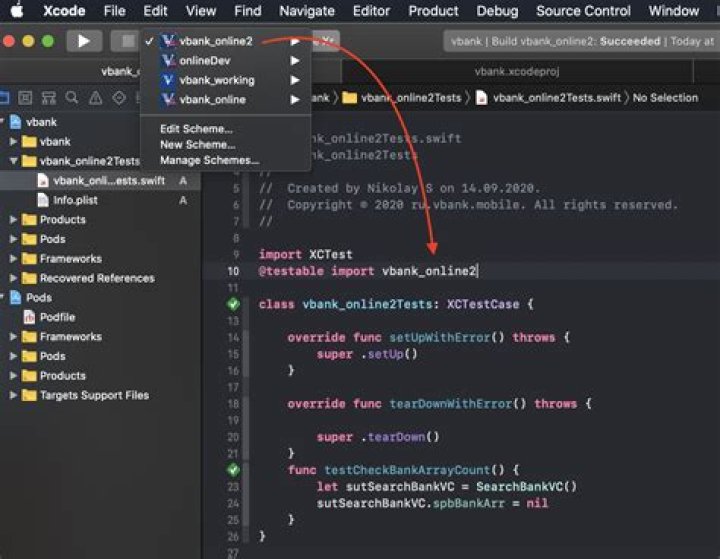
Beside the play button, select the test scheme, then Edit scheme..., go to the Build section, click plus + and select the target you want to test against.
In my case, we have an internal target that we develop with (a few minor differences) and after a merge, it was removed from the test config.
Here is yet another thing to check that is not listed. For me, it had something to do with my team, perhaps because our Team's Agent had not yet agreed to the latest License Agreement! Once I selected a different Team in my Target's General settings, AND then I specified a specific Deployment Target like 12.1 or 11.0, suddenly the "No Such Module" warning went away.
If you have some targets in your project - check your TARGETS in Module Name that you try to import with @testable import "TARGETSModuleName".
The module name should be the same on: Target -> Build Settings -> Product Module Name
For example:
I followed the steps above, which worked. However, my project had some more issues. I got this warning and I could not access classes from my main project to test in my test target.
I found that your Test target Product Module Name (YourTestTarget -> Build Settings -> search for product module) cannot be the same name as your project name.

Once I changed the Product Module Name for my test target everything worked.
I tried all the answers here but the red flag would not go away. But I got it to work by just "running" an empty test regardless and it cleared up.
Things I would like make sure are done:
- Host Application
- @testable import "Module_name" (make sure the module name is correct)
- Make sure you deployment target for the test is the same as the project
- XCTest does not need to have Target membership
XCode 12.6 beta
I'm not sure what caused this issue for me but cleaning my build folder didn't sort it. Restarting XCode didn't sort out the issue either.
What worked for me was deleting this line: import XCTest, and then retyping it again.
My issue was that the class i wanted to test was supposed to be in a separate module (API Client), but the class was actually a member of the app target and not the framework target. Changing the target membership of the class made the import error go away!
Environment: Xcode Version 9.0 (9A235)
Scenario: Testing an open-source framework.
I had the same problem: 'No such module'.
Solution:
- Select the Test target.
- Select Build Phases
- Add the framework to be tested via Link Binary...
Here's the test file:
I had this same issue. Cleaning the build folder and restarting Xcode did not work.
What did work for me was ensuring that the setting for "Build Active Architecture Only" of your test target and scheme matches the setting of your app's target and scheme.
2XCode 12 Development Beta 3
The error fixed itself after I've built the project for the first time.
0This is what worked for me with Xcode 13.1:
In the Locations tab in Xcode Preferences > Locations I had defined a Custom location:
This caused not only unit tests to fail with the dreaded "No such module" error, but also also "Command CodeSign failed with a nonzero exit code" and other warnings and errors.
Changing the setting to Unique:
fixed all problems.
It could also be:
- Not set the hosting application for your test target (in the general tab or
TEST_HOSTbuild setting) - Missing the app dependency in your Build Phase for your test target.
The problem occured for me on Xcode 14.3 with SwiftLint 0.51.0
If you use // swiftlint:disable all in the beginning of your import code and // swiftlint:enable all in the end(since SwiftLint recommends to do) of your test file, it could not detect the file, hence throwing the error. Not using // swiftlint:disable all and format my file solved the problem for me.
For me the solution was to rename @testable import myproject_ios to @testable import myproject after I had updated product name of target myproject-ios in Build Settings/Packaging/Product Name/ from ${TARGET_NAME} to myproject.
This was fixed for me when I changed the Deployment Target from 9.3 to 11.0.
General > Deployment Target > "11.0"
1If you are using xcodebuild and find this problem, consider adding in a workspace flag to the build command.
Changed This
$ xcodebuild -scheme PowToonsTests -destination 'name=iPhone X' test To This
$ xcodebuild -workspace PowToons.xcworkspace -scheme PowToonsTests -destination 'name=iPhone X' test In build settings test target, check the host testing, it takes the name set in PRODUCT_NAME. It is that name that you should use in test classes.
I recommand to not change PRODUCT_NAME (match name of the main target)
I think this may have happened because I deleted the example tests.
I removed the Unit test bundle then re-added it as shown in the pictures below and all was well again.
CocoaPods recommends adding inherit! :search_paths to your test target like so:
target 'App' do target 'AppTests' do inherit! :search_paths end end Tried all the solutions. Nothing worked. The Xcode build cli failed on a swift package module not found error.
error: no such module 'Apollo' import Apollo
Removing the Test targets and re-adding them worked for me.




