With my current scenario, I am implementing a functionality which reads data from SQL database and writes to excel file.
File System Task Component: The destination excel file to which I am trying to write to is being copied in to destination directory from other source directory. The source directory has an excel file which I use as a template to copy it in to destination directory. For that I am using "File System Task" component and "Copy File" feature.
ISSUE: The "File System Task" copies the file successfully but later the write to excel file fails with below error.
Opening a rowset for "C:\Users\Public\Documents\New_Carriers-2019-07-11.xlsx" failed. Check that the object exists in the database. WORKAROUND / TROUBLESHOOTING: 1. I set the project to 32 bit runtime based on other users feeback. 2. I also applied delay prior actually start writing to file. 3. I also checked appropriate access rights to write file to destination directory.
Below is the screenshot of my control flow.
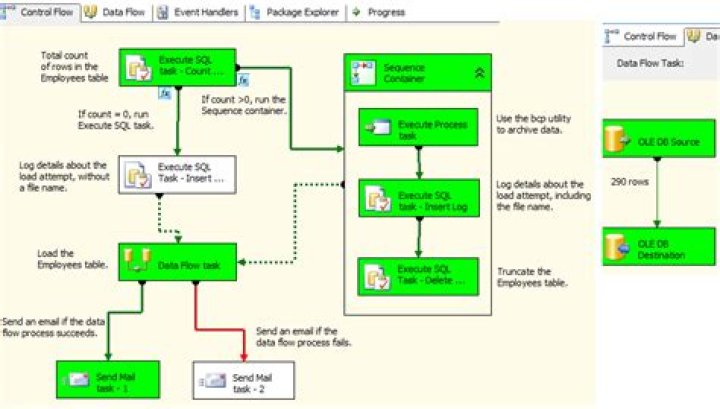
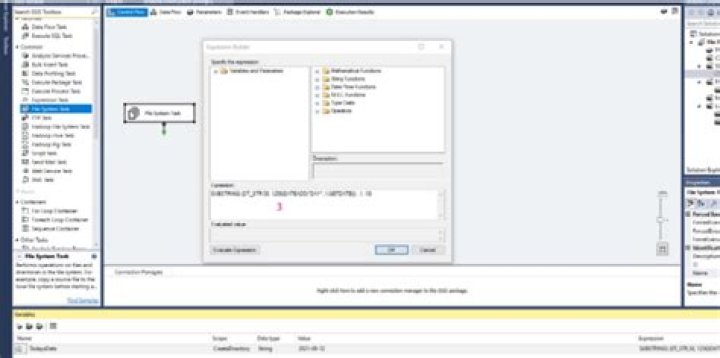

Any direction towards the resolution is appreciated. There are similar post with same errors I found but I wonder why my issue looks different.
12 Answers
You have to run an Execute SQL Task to create the table/sheet in the Excel file, even if the file already exists.
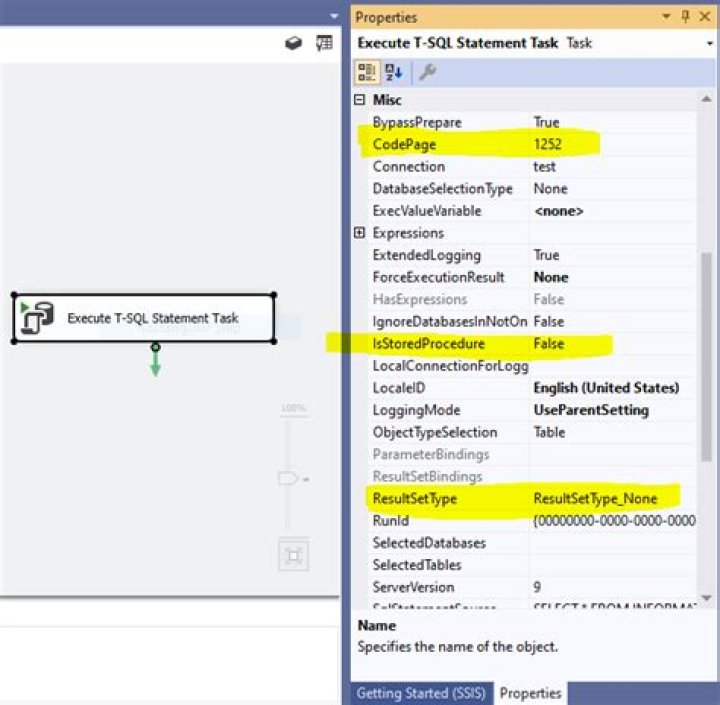
If you add this step after the File System Task, and parameterize your Excel connection properly it should allow you to insert data in the data flow.
2I believe this could be one of the answer to such question as I found various scenarios pointing towards resolution to this kind of question. Hence, I am posting my triage which helped me overcome this issue.
I checked below things:
First, I checked
Task Managerto see if any existingMicrosoft Excelrelated process holding my files up. Which was not the case. (I.e. no existing process I found)Second, I applied below steps to triage. 2.1. I removed all previous files from the destination directory where I write new files to make sure I am running my batch process afresh. 2.2. I cleared everything from
%temp%directory. (Which I believe might/might not be case for everyone) 2.3. After performing above steps, I noticed in SSISExcel Destination componentwhere we provideName of the Excel sheetthe component automatically adapted the file name with$as suffix to indicate that the component has successfully established the connection with desired path to read the source template. For ex. my file name wasNew_Carriers.xlsx, the component has adapted the name asNew_Carriers$. 2.4. After that making these things I have been running my package till now without any issue. Although, it might be straight forward, but took quite long to triage and confirm how to handleExcel Destinationsmoothly.




